Less than a week after the release of Ubuntu 9.04 Jaunty Jackalope I am now running it on 2 machines. The first, a laptop, was an upgrade. The second, a clean install on my main home machine.
First my impressions:
This is (so far) the best release of Ubuntu that I've used.
As I indicated, I upgraded to Jaunty on a laptop first. It was a pretty clean system to start with, being a month old Intrepid installation without much customization. I did the upgrade the day of the release, using the update manager to pull the upgrade over the internet. It took a few hours, but it completed, and installed without any issues. This was refreshing, considering my last go-round with this sort of stuff.
The Laptop just sort of felt... slick. It is hard to explain. Like the Matrix, you can't explain it you just have to experience it yourself... Oh, wait, you can explain the Matrix. OK, well let me try to explain Jaunty's slickness. The first thing I noticed is the notifications have been unified, and fade out fancily. This may seem trivial, but when put together with the snappy response times, smoother graphics, and better art, it all leads to a more solid feel for the OS. While I generally rail against this sort of thing (my vista installs generally look and feel more like windows 2000) A slicker experience does lead to higher overall satisfaction.
This general sense of slickness made me decide to get Jaunty on my main machine.
This is where I would really get my real first impressions of Jaunty. I use this machine all the time. I had already decided to do a fresh install on the old workhorse, so I backed up my profile, deleted my profile and installed a clean fresh Jaunty.
The installation has been superficially changed, with new graphics, but runs essentially the same as in recent versions.
Now, maybe it is the fact that this is the first clean install I've done on this machine in a few versions, but this version is VERY solid. It fixed many of my previous issues, and everything just sort of works. Not that it did not work before, but of all the ubuntu installs I've done, this one went from install to "pretty much done" quicker than any I can think of. None of the BS that came with intrepid. So far I'm very happy with this version. I will post my setup log/fixes soon.
Showing posts with label linux. Show all posts
Showing posts with label linux. Show all posts
Wednesday, April 29, 2009


Monday, March 30, 2009
Ubuntu Terminal Services Client Clipboard Support
Using Ubuntu's "Terminal Server Client" is a great tool for anybody that needs to use VNC or RDP to work on remote machines. It is a nice interface, and has a handy "quick connect" feature that allows you to rapidly connect to a pre-saved server.
I use it extensively to remote control various Windows servers on my work network.
The problem for me has been that clipboard copying and pasting has not worked for me using this tool.
After some digging I found that by editing my rdp files in ~\.tsclient\ and changing the protocol line to:
protocol:i:4
would get the clipboard working on my quick connect entries.
This only works on RDP connections, obviously not VNC ones, but it is very handy.
I use it extensively to remote control various Windows servers on my work network.
The problem for me has been that clipboard copying and pasting has not worked for me using this tool.
After some digging I found that by editing my rdp files in ~\.tsclient\ and changing the protocol line to:
protocol:i:4
would get the clipboard working on my quick connect entries.
This only works on RDP connections, obviously not VNC ones, but it is very handy.
Wednesday, July 16, 2008
Remove Extra Entries on Boot Menu in Ubutnu
Today I got a new kernal update for my home ubuntu system, and I realized that the boot menu now has more entries than you can see on the screen.
To "fix" this, you can bring up a terminal and type this:
you can comment out the lines you don't want to see by putting a # in front of them.
for example,
if you had these entries:
adding the # to the last block of text, so it looks like this:
Be sure to only remove the ones you won't be using! I always leave the current and at least one previous version in there, just in case. You still have all your previous versions, and can UN-comment them if for some reason you should you need to boot to them in the future.
note: this has all changed in Karmic
check here.
To "fix" this, you can bring up a terminal and type this:
sudo gedit /boot/grub/menu.lst
you can comment out the lines you don't want to see by putting a # in front of them.
for example,
if you had these entries:
title        Ubuntu 8.04, kernel 2.6.24-19-generic
root        (hd0,0)
kernel        /boot/vmlinuz-2.6.24-19-generic root=UUID=6d2dc48d-7e9d-40b4-b7d5-d639afddf847 ro quiet splash
initrd        /boot/initrd.img-2.6.24-19-generic
quiet

title        Ubuntu 8.04, kernel 2.6.24-19-generic (recovery mode)
root        (hd0,0)
kernel        /boot/vmlinuz-2.6.24-19-generic root=UUID=6d2dc48d-7e9d-40b4-b7d5-d639afddf847 ro single
initrd        /boot/initrd.img-2.6.24-19-generic

title        Ubuntu 8.04, kernel 2.6.24-18-generic
root        (hd0,0)
kernel        /boot/vmlinuz-2.6.24-18-generic root=UUID=6d2dc48d-7e9d-40b4-b7d5-d639afddf847 ro quiet splash
initrd        /boot/initrd.img-2.6.24-18-generic
quiet

title        Ubuntu 8.04, kernel 2.6.24-18-generic (recovery mode)
root        (hd0,0)
kernel        /boot/vmlinuz-2.6.24-18-generic root=UUID=6d2dc48d-7e9d-40b4-b7d5-d639afddf847 ro single
initrd        /boot/initrd.img-2.6.24-18-generic
adding the # to the last block of text, so it looks like this:
#title        Ubuntu 8.04, kernel 2.6.24-18-generic (recovery mode)
#root        (hd0,0)
#kernel        /boot/vmlinuz-2.6.24-18-generic root=UUID=6d2dc48d-7e9d-40b4-b7d5-d639afddf847 ro single
#initrd        /boot/initrd.img-2.6.24-18-generic
Be sure to only remove the ones you won't be using! I always leave the current and at least one previous version in there, just in case. You still have all your previous versions, and can UN-comment them if for some reason you should you need to boot to them in the future.
note: this has all changed in Karmic
check here.
Thursday, July 03, 2008
How To Use Emerald In Hardy Ubuntu
Hardy has Compiz Fusion built in, and comes with some preloaded options. By using synaptic to install the "compizconfig-settings-manager" gets you a ton of control over your desktop eye candy.
But to get the ultimate in Ubuntu desktop effects, you need to use the Emerald Theme Manager. Emerald is also a windows decorator - meaning it controls the appearance of your windows. So with compizconfig-settings-manager, to control things like your wobbly windows, and Emerald to control the way your windows look, you have the best possible control over your Ubuntu desktop. Also there are insane amounts of Emerald themes, and other cool stuff, at gnome-look.org. Here is the easiest way to get Compiz working with Emerald (Thanks hactivision):
First - using synaptic, install Emerald - it lives in the universe repo.
Second - using the applications menu, add / remove programs. search for and install the compiz fusion icon.
once installed, you can find it under applications, system tools menu. The icon will then show up in the panel at the upper right. You can have it start automatically by creating an entry for "fusion-icon --no-start" in start up programs (system menu, preferences, sessions, startup programs tab).
Right Clicking on the icon gives you the following options:
Settings manger (which is the same as the compiz setting manager or advanced desktop effects from the system preferences menu)
Emerald theme manager - this is where you manage your emerald themes - you can download the themes from gnomelook.org, or install this package to get a few loaded automatically for you.
You can also select your windows manager (changing to metacity will turn off almost all eye candy), and you windows decorator. The windows decorator is where you go to enable Emerald. Once you select Emerald as your windows decorator, your windows borders may disappear for a couple of seconds, but they should come back. And then you will be rockin' the emerald.
Monday, June 16, 2008
Ubuntu Google Gadgets - Who Gives a F...
Google Gadgets are now available on Ubuntu. I read about this here.
I read the post, and was all ready to start using all these fantastic gadgets. So I loaded a few up. Pretty boring stuff. The same sorts of stuff that I don't ever use in Vista on my work machine. Then I loaded the NASA picture of the day. That sounded sort of cool. It crashed my session.
What?
That is right. It killed my session. It dropped me to black screen and then I had to log in again. I was actually writing this blog entry on how to set this stuff up, and I lost all but the first sentence (the one that you see starting this post).
The funny thing is, I'm actually glad it happened. I've always said widgets, gadgets, desklets, whatever you want to call them... They suck. They waste resources in your system, and you really don't gain much benefit from them. The NASA gadget crashing my session was just a reminder of that.
The analog clock in vista is a great example. Does it provide any real benefit over the clock in the system tray? Well it is a lot bigger, and don't get me started on how it is realistically lit and shaded! Really, how much value does that provide? And now you have less desktop to use. And I would bet real money that it more than uses more than twice the amount of memory and CPU cycles needed for the system tray clock. And while I have no hard data, I'd also bet it has an impact on laptop battery life as well.
These things are typical of the bloat that folks always bitch about when it comes to operating systems. Why is it that I need to have an 80GB hard disk when I could run windows 95 on 100mb? Well, you didn't have a shiny over sized-analog clock taking up desktop real estate in windows 95. YOU'RE WELCOME.
When active desktop came out with Internet Explorer 4, everyone thought it was the greatest thing ever - for about 15 minutes. Then they realized it was no real benefit, and it was a big pain in the ass. Apps and content running on the desktop rightfully went into hiding for a few years, until Applemade it popular invented it in OS X Tiger. Of course their implementation is very different, with Apple using a dashboard to house the widgets. And of course they would never rip-off Microsoft - they ripped of Konfabulator. But that is a different story.
The bottom line is this - of course any modern computer can probably take any small performance hit caused by running these little apps all the time - BUT WHY? there is just not enough benefit that I can see. Want your RRS feeds visible? load them on your home page. Want to know what time it is? Look at the clock the computer already gives you. To me these are mostly just useless eye candy, with very few real productivity gains.
Update - I found a Vista gadget I'm actually interested in. When I first got Vista, I could not believe that the included calendar gadget did not integrate with Outlook or Exchange. Well, they now have some gadgets here that show upcoming tasks and appointments. I will run this for a while and see if it really is worth it...
Update to the Update - They suck. you have to have outlook running for them to work. Which means they look like this when you boot:

so, if I need to outlook open, what is the point? Oh well I keep outlook open all day anyway.
I read the post, and was all ready to start using all these fantastic gadgets. So I loaded a few up. Pretty boring stuff. The same sorts of stuff that I don't ever use in Vista on my work machine. Then I loaded the NASA picture of the day. That sounded sort of cool. It crashed my session.
What?
That is right. It killed my session. It dropped me to black screen and then I had to log in again. I was actually writing this blog entry on how to set this stuff up, and I lost all but the first sentence (the one that you see starting this post).
The funny thing is, I'm actually glad it happened. I've always said widgets, gadgets, desklets, whatever you want to call them... They suck. They waste resources in your system, and you really don't gain much benefit from them. The NASA gadget crashing my session was just a reminder of that.
The analog clock in vista is a great example. Does it provide any real benefit over the clock in the system tray? Well it is a lot bigger, and don't get me started on how it is realistically lit and shaded! Really, how much value does that provide? And now you have less desktop to use. And I would bet real money that it more than uses more than twice the amount of memory and CPU cycles needed for the system tray clock. And while I have no hard data, I'd also bet it has an impact on laptop battery life as well.
These things are typical of the bloat that folks always bitch about when it comes to operating systems. Why is it that I need to have an 80GB hard disk when I could run windows 95 on 100mb? Well, you didn't have a shiny over sized-analog clock taking up desktop real estate in windows 95. YOU'RE WELCOME.
When active desktop came out with Internet Explorer 4, everyone thought it was the greatest thing ever - for about 15 minutes. Then they realized it was no real benefit, and it was a big pain in the ass. Apps and content running on the desktop rightfully went into hiding for a few years, until Apple
The bottom line is this - of course any modern computer can probably take any small performance hit caused by running these little apps all the time - BUT WHY? there is just not enough benefit that I can see. Want your RRS feeds visible? load them on your home page. Want to know what time it is? Look at the clock the computer already gives you. To me these are mostly just useless eye candy, with very few real productivity gains.
Update - I found a Vista gadget I'm actually interested in. When I first got Vista, I could not believe that the included calendar gadget did not integrate with Outlook or Exchange. Well, they now have some gadgets here that show upcoming tasks and appointments. I will run this for a while and see if it really is worth it...
Update to the Update - They suck. you have to have outlook running for them to work. Which means they look like this when you boot:

so, if I need to outlook open, what is the point? Oh well I keep outlook open all day anyway.
Friday, May 23, 2008
eeebuntu - Hardy Heron Ubuntu based Distro For eeePC
I'm not sure how long it has been out, but eeebuntu is an Ubuntu distro all set and ready to go for eeePCs.
It appears to have re-designed the panel layout, and is based on Hardy.
On the FTP site they reference for the download, they include a script to create a bootable usb driver installer.
I might give this a shot over the long weekend. Just to see how it goes.
It appears to have re-designed the panel layout, and is based on Hardy.
On the FTP site they reference for the download, they include a script to create a bootable usb driver installer.
I might give this a shot over the long weekend. Just to see how it goes.
Sunday, May 18, 2008
Ubuntu CIFS Errors On Shutdown
Since my Hardy upgrade, I've had an issue when trying to reboot or shutdown my home machine.
Basically, the system would stall for a bit on shutdown, giving a CIFS error.
The error line indicates that CIFS VFS is not responding for CMD 50...
Turns out the problem was that the network manager would shutdown before my mounted samba shares could dismount.
I found this blog that had the fix:
Entering these lines will cause your system to change the order of events during shutdown, and samba shares will be dismounted before network manager goes off-line, resolving the issue.
Basically, the system would stall for a bit on shutdown, giving a CIFS error.
The error line indicates that CIFS VFS is not responding for CMD 50...
Turns out the problem was that the network manager would shutdown before my mounted samba shares could dismount.
I found this blog that had the fix:
sudo ln -s /etc/init.d/umountnfs.sh /etc/rc0.d/K15umountnfs.sh
sudo ln -s /etc/init.d/umountnfs.sh /etc/rc6.d/K15umountnfs.sh
Entering these lines will cause your system to change the order of events during shutdown, and samba shares will be dismounted before network manager goes off-line, resolving the issue.
Wednesday, March 19, 2008
How To Create A Launcher For A Shell Script
In Linux, you may often find apps that are launched via a script. These are called in the terminal like so:
but creating a launcher for such a script is a pain, so here is what I do.
For this example we will pretend we have a shellscript called "shakespear" and it lives in the /home/jim/apps folder. This name is only for our example - you can use any name you like.
Somewhere, such as your home folder, create a file called shakespear.sh
edit the file to have the following in it:
Then make that file to executable:
Now you can just create a launcher to point to that shakespear.sh file, and you are all set. Calling a script from a script may not be the the best way to do it, but it works...
./nameofscriptbut creating a launcher for such a script is a pain, so here is what I do.
For this example we will pretend we have a shellscript called "shakespear" and it lives in the /home/jim/apps folder. This name is only for our example - you can use any name you like.
Somewhere, such as your home folder, create a file called shakespear.sh
edit the file to have the following in it:
#! /bin/bash
cd /home/jim/apps
./shakespearThen make that file to executable:
chmod u+x shakespear.shNow you can just create a launcher to point to that shakespear.sh file, and you are all set. Calling a script from a script may not be the the best way to do it, but it works...
Tuesday, March 18, 2008
Update on Gparted live
I just figured out (DUH) that the Gparted Live CD that I recently wrote about can not only resize partitions, but it can also copy partitions. So this disk turns out to be an even better too to upgrade a hard disk in a PC.
You could, for example, put a new hard disk in a usb caddy, hook it up to your computer, boot the live cd, copy AND resize the partition in one operation, set the 'boot' flag on your new disk's partition, and then physically swap the disks. A windows partition will then run a scan disk on boot, but you should be good to go with a new bigger hard disk after that.
Even more good stuff!
You could, for example, put a new hard disk in a usb caddy, hook it up to your computer, boot the live cd, copy AND resize the partition in one operation, set the 'boot' flag on your new disk's partition, and then physically swap the disks. A windows partition will then run a scan disk on boot, but you should be good to go with a new bigger hard disk after that.
Even more good stuff!
Monday, March 10, 2008
Clonezilla FOSS For Partition / Computer Cloning
If you are familiar with Symantec Ghost, then you already know what Clonezilla can do for you.
Ghost is a partition copying utility for windows. It geared toward making and restoring complete copies of individual system's hard disks. There is an open-source alternative called Partimage. Symantec also offers a corporate edition designed to use for cloning multiple machines out over a network. This is exactly what Clonezilla does for free - and it is open source.
Ghost has a nice GUI, and a nice polished package. Clonezilla is all text (but menu driven), and harder to use. But it also has many more options, and supports more file systems - such as the kind typically used by Linux.
By itself, Clonezilla requires a server backend. Setting this up is probably more work than it is worth for most small/medium business IT folks. However there is an excellent Clonezilla Live disk, which runs all by itself. I use Clonezilla live for almost all my partition work. Clonezilla actually uses several open-source utilities (including Partimage), so It can copy and restore partitions to/from external usb disks, firewire disk, smb (windows) shares, just about anything you can think of. You can copy the partitions directly, or to archived images. It is the all in one partition toolkit, except for resizing that is.
I use Clonezilla Live to image multiple machines each week, sometimes up to 20 at a time. On the Clonezilla Live site, they warn that if you are imaging multiple machines, you should use Clonezilla with its DRBL server. From what I've seen, for my needs, Clonzilla Live's performance has been more than adequate.
Ghost is a partition copying utility for windows. It geared toward making and restoring complete copies of individual system's hard disks. There is an open-source alternative called Partimage. Symantec also offers a corporate edition designed to use for cloning multiple machines out over a network. This is exactly what Clonezilla does for free - and it is open source.
Ghost has a nice GUI, and a nice polished package. Clonezilla is all text (but menu driven), and harder to use. But it also has many more options, and supports more file systems - such as the kind typically used by Linux.
By itself, Clonezilla requires a server backend. Setting this up is probably more work than it is worth for most small/medium business IT folks. However there is an excellent Clonezilla Live disk, which runs all by itself. I use Clonezilla live for almost all my partition work. Clonezilla actually uses several open-source utilities (including Partimage), so It can copy and restore partitions to/from external usb disks, firewire disk, smb (windows) shares, just about anything you can think of. You can copy the partitions directly, or to archived images. It is the all in one partition toolkit, except for resizing that is.
I use Clonezilla Live to image multiple machines each week, sometimes up to 20 at a time. On the Clonezilla Live site, they warn that if you are imaging multiple machines, you should use Clonezilla with its DRBL server. From what I've seen, for my needs, Clonzilla Live's performance has been more than adequate.
Monday, February 25, 2008
Linux Mint - The New Hotness
I've been hearing about Linux Mint for a while now, even before switched to Linux full time. I'm always skeptical of flashy Linux distros, mainly because I care more about stability, and the feeling that it will be around a while.
This last weekend I loaded Linux Mint on a laptop, I honestly can't remember why - I just wanted to try something different.
I have to say that I'm very impressed. The interface is nice and clean, and is a perfect gateway for a windows convert.
The real sell here (for me at least) is that all the big multimedia components come preloaded. Most new Linux users who load Ubuntu are probably disappointed to find that they can't play DVDs or many other multimedia formats out of the box. Moreover, those codecs can be a pain to get loaded. Linux Mint includes DVD, MP3, WMV, Flash, and many other restricted formats.
And since it is based on Ubuntu, you can use the Ubuntu repositories to load all the apps you have been using on Ubuntu via synaptic.
Good Stuff.
This last weekend I loaded Linux Mint on a laptop, I honestly can't remember why - I just wanted to try something different.
I have to say that I'm very impressed. The interface is nice and clean, and is a perfect gateway for a windows convert.
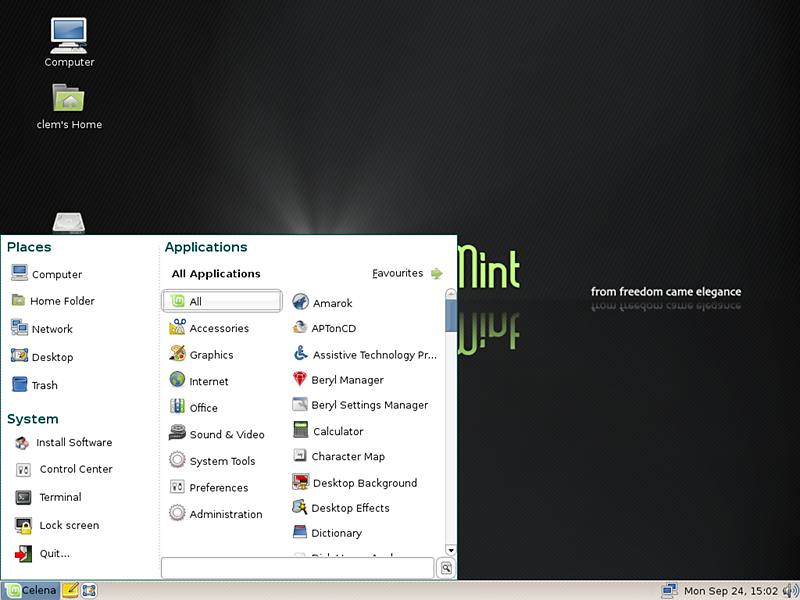
The real sell here (for me at least) is that all the big multimedia components come preloaded. Most new Linux users who load Ubuntu are probably disappointed to find that they can't play DVDs or many other multimedia formats out of the box. Moreover, those codecs can be a pain to get loaded. Linux Mint includes DVD, MP3, WMV, Flash, and many other restricted formats.
And since it is based on Ubuntu, you can use the Ubuntu repositories to load all the apps you have been using on Ubuntu via synaptic.
Good Stuff.
Monday, February 18, 2008
Resize Partitions
For quite a while now I've been using BootNG's demo disk to resize NTFS partions.
It comes at no cost, and works pretty well.
But I recently discovered that there is a GParted Live CD which can both boot your machine, and run the same GParted that you run in Linux.
Why would I choose one over the other? Well, first I had to go find Gparted Live CD, because BootNG would not work on a Dell D620 I was working with the other day. Second, GParted will handle almost any type of partition you can think of for a PC.
And it is completely open source, released under the GPL which is great because you don't need to worry about some comercial entity deciding to pull the plug on their free product. (you only need to worry about the project dying off!)
SOLD
update - this thing does even more!
It comes at no cost, and works pretty well.
But I recently discovered that there is a GParted Live CD which can both boot your machine, and run the same GParted that you run in Linux.
Why would I choose one over the other? Well, first I had to go find Gparted Live CD, because BootNG would not work on a Dell D620 I was working with the other day. Second, GParted will handle almost any type of partition you can think of for a PC.
And it is completely open source, released under the GPL which is great because you don't need to worry about some comercial entity deciding to pull the plug on their free product. (you only need to worry about the project dying off!)
SOLD
update - this thing does even more!
Sunday, January 27, 2008
How To Convert DVD to iPod with VLC (works in Ubuntu Linux)
I've been playing around for a while trying to get the best solution for ripping DVDs right to iPod format. Since most of the '1 click solutions' I've found for Linux are either A, a nightmare to setup, or B, not very reliable or all that easy, VLC appears to be a great solution. And a bonus is that since VLC is cross platform, this should work on Linux, Mac, Windows, pretty much everything.
OK - what to do. first, get VLC - for Ubuntu, it is in the repositories.
Next pop your DVD in your drive, open VLC. Go to the file menu, and choose Open Disc, and you will be presented this screen.
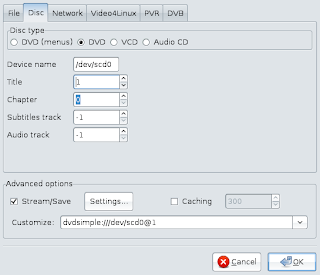 I've had to change some of the default settings.
First, I've set the disc type to DVD - not DVD (menus).
Second, I've selected the title number. It would have been nice if VLC had some way to figure out what title corresponds to what video on the DVD, but hey, nothing is perfect, right? You can use dvd::rip, if you have it to view the table of contents and figure out which title is which. You can also just run the transcode for a few seconds, and see if the resulting file is correct...
Lastly you need to click the check mark by the Stream/Save option, and click the settings button.
This brings up this window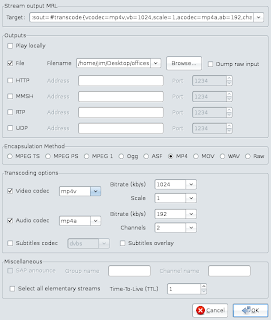
You need to adjust the following on this screen:
First, Click the checkbox next to File, and then select the file name and location that you are going to create.
Second, change the encapsulation method to MP4.
Third, make sure the video codec is set to MP4V and the Audio to MP4A. you can change the bitrates if you want to, but I know the defaults work for me.
At this point I would like to make a note - the iPod supports the h264 codec, which is an option from this point. but I could not get it to create a file that would show video in my iPod (although it worked fine on my desktop)
now tell it OK to close this window. and OK again to the first window.
the vlc player will then run. At this point it does not show video, but the slider moves along as though it was. Don't be alarmed - this is how it works. You can stop the player, if you want to have an incomplete file that will work for testing, but you will need to start it over again to make the complete video. Once it is completed, upload to your iPod with Itunes, floola, or whatever you normally use.
OK - what to do. first, get VLC - for Ubuntu, it is in the repositories.
Next pop your DVD in your drive, open VLC. Go to the file menu, and choose Open Disc, and you will be presented this screen.
 I've had to change some of the default settings.
First, I've set the disc type to DVD - not DVD (menus).
Second, I've selected the title number. It would have been nice if VLC had some way to figure out what title corresponds to what video on the DVD, but hey, nothing is perfect, right? You can use dvd::rip, if you have it to view the table of contents and figure out which title is which. You can also just run the transcode for a few seconds, and see if the resulting file is correct...
Lastly you need to click the check mark by the Stream/Save option, and click the settings button.
This brings up this window

You need to adjust the following on this screen:
First, Click the checkbox next to File, and then select the file name and location that you are going to create.
Second, change the encapsulation method to MP4.
Third, make sure the video codec is set to MP4V and the Audio to MP4A. you can change the bitrates if you want to, but I know the defaults work for me.
At this point I would like to make a note - the iPod supports the h264 codec, which is an option from this point. but I could not get it to create a file that would show video in my iPod (although it worked fine on my desktop)
now tell it OK to close this window. and OK again to the first window.
the vlc player will then run. At this point it does not show video, but the slider moves along as though it was. Don't be alarmed - this is how it works. You can stop the player, if you want to have an incomplete file that will work for testing, but you will need to start it over again to make the complete video. Once it is completed, upload to your iPod with Itunes, floola, or whatever you normally use.
A Few Ubuntu Tweaks - Acrobat and Desktop Icons
Here are a few tweaks to improve your Ubuntu life.
I prefer Adobe's Acrobat reader to the Ubuntu's default PDF reader. It is not 'free' software (as in freedom) but that is not an issue for me.
To get it - just search for acroread under synaptic: You need to get at least the acroread. the other components get you the ability to read in browser (the mozilla plugin, which I don't care for) and the plug-ins for acrobat itself, such as URL launching, form filling out, etc.
Next - how to change the icons that display on your dekstop. I don't want all my various volumes showing up on the desktop, just a computer icon (and maybe the home folder and trash icons as well) are better for me.
To do so: alt+f2 to bring up the run application box, and enter:
gconf-editor
in the config tool, go to apps, nautilus, desktop:
 Now you can change the icon optons to your liking.
I prefer Adobe's Acrobat reader to the Ubuntu's default PDF reader. It is not 'free' software (as in freedom) but that is not an issue for me.
To get it - just search for acroread under synaptic:
You need to get at least the acroread. the other components get you the ability to read in browser (the mozilla plugin, which I don't care for) and the plug-ins for acrobat itself, such as URL launching, form filling out, etc.Next - how to change the icons that display on your dekstop. I don't want all my various volumes showing up on the desktop, just a computer icon (and maybe the home folder and trash icons as well) are better for me.
To do so: alt+f2 to bring up the run application box, and enter:
gconf-editor
in the config tool, go to apps, nautilus, desktop:
 Now you can change the icon optons to your liking.
Friday, January 25, 2008
How To Setup A Second Hard Disk In Ubuntu
This is going to be quick and to the point. I'm not going to drone on about all the different options, and what they might do for you. I will only try to get that second hard disk running ASAP.
I'm assuming you know how to physically install the drive - if not, read the instructions that came with the hard disk. Be aware that any hard disk MUST show up in your system's BIOS before it will work in any OS. So if you are not seeing the drive in OS, check to see if you can see it in BIOS, and also make sure you don't have the SATA connector disabled or anything.
Once installed, boot your computer. if you don't have gparted (system menu, administration, partition editor), go to synaptic and get it.
Launch gparted either by going to system menu, administration, partition editor, or by running "sudo gparted" in the terminal.
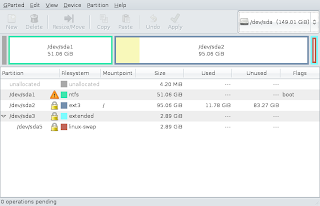
See the dropdown box in the upper right side? Select your new disk there.
If you don't understand what a partition is, you probably need to do some more reading, and should probably stop here. But I will plow ahead...
If there is an existing partition on the drive, you can delete it from here if you like. You can also create a new partition as needed. I would suggest ext3, and apparently so would Ubuntu - when your Ubuntu setup ran, it most likely created an ext3 partition for itself to live in.
MAKE NOTE OF YOUR NEW PARTITION'S PATH (/dev/sdb1 in the example I'm using) you will need this info later
Now we have a usable drive. but it won't do much for you without mounting it.
Let's say we want to call our new drive "storage"
go to terminal, and enter the following:
sudo mkdir /media/storage
followed by
This has created a mount point for our drive. I chose to put it in the media folder, because Ubuntu will load all removable media (like usb drives) there. You could put this wherever you like, and there is a mnt directory that might actually be a more proper choice. if you care, you can read about it here.
now you need to edit your fstab so that this mounts automatically.
In terminal again:
you will need to add a line:
Save and exit the editor.
I'm assuming you know how to physically install the drive - if not, read the instructions that came with the hard disk. Be aware that any hard disk MUST show up in your system's BIOS before it will work in any OS. So if you are not seeing the drive in OS, check to see if you can see it in BIOS, and also make sure you don't have the SATA connector disabled or anything.
Once installed, boot your computer. if you don't have gparted (system menu, administration, partition editor), go to synaptic and get it.
Launch gparted either by going to system menu, administration, partition editor, or by running "sudo gparted" in the terminal.

See the dropdown box in the upper right side? Select your new disk there.
If you don't understand what a partition is, you probably need to do some more reading, and should probably stop here. But I will plow ahead...
If there is an existing partition on the drive, you can delete it from here if you like. You can also create a new partition as needed. I would suggest ext3, and apparently so would Ubuntu - when your Ubuntu setup ran, it most likely created an ext3 partition for itself to live in.
MAKE NOTE OF YOUR NEW PARTITION'S PATH (/dev/sdb1 in the example I'm using) you will need this info later
Now we have a usable drive. but it won't do much for you without mounting it.
Let's say we want to call our new drive "storage"
go to terminal, and enter the following:
sudo mkdir /media/storage
followed by
sudo chmod -R 2777 /media/storage
Of course change the word storage to whatever you want to call your drive - but make a note of it, you will be using this path again soon.This has created a mount point for our drive. I chose to put it in the media folder, because Ubuntu will load all removable media (like usb drives) there. You could put this wherever you like, and there is a mnt directory that might actually be a more proper choice. if you care, you can read about it here.
now you need to edit your fstab so that this mounts automatically.
In terminal again:
sudo gedit /etc/fstabyou will need to add a line:
/dev/sdb1 /media/storage ext3 defaults 0 0
***Note - you need to have the path of the partition and the mount point match what you found/used earlier in this tutorial***Save and exit the editor.
When you reboot next, you will have the disk ready to rock.
Can't wait for a reboot? try this in terminal:

sudo mount -a

!!!BONUS!!!
If you looked closely at my screen shot of gparted, you may have noticed that I have a windows partition on my main hard disk. Well, you should mind your own damn business. BUT yes I do have a dual boot system. If you also dual-boot ext2 IFS can be installed in windows to give access to ext3 filesystems. And now your new drive can be accessed from both of the operating systems on your machine.
Monday, December 31, 2007
My first iPod

I was given an iPod for Christmas. It is an 80Gb black classic iPod, and my first.
To begin, I should say that the iPod is a nice piece of hardware, and the interface is pretty cool. I've had many MP3 players in my day, and this is one of the nicest ones, for sure.
However, I have some issues (of course) with the device.
First off, the fact that it only plays mp4 movies is pretty lame, because it is a pain to transcode files to play on this device. Luckily, I found a way to do such transcoding here which works ok.
The real issue is the decision by apple to modify the iPod's internal database. This sucks because my installation of amarok on Gutsy Ubuntu would shred the database when you add a file. This resulted in the iPod not seeing any of the files it had onboard. Following these instructions I was able to add files via Amarok, but even playing files with it blows up the album artwork on the iPod. I'm going to do some experimentation with Floola, and see if that has better results.
My understanding is that iPods worked just fine under Linux, and other media managers, before apple made their changes to the databases. It sure feels like this change was done to force people to use ITunes. I can understand that - Apple wants to keep folks tied to that system - but if that is the case, they should make a version for Linux. As of now, It is going to be difficult to justify purchasing another iPod, or recommending it to anyone.
UPDATE:
Floola works pretty damn well. It lets me manage music and videos, but not photos, which I don't need. While you can play music off the Ipod, it does not manage any other music sources. So it is not an all in one solution like Amarok, or Itunes try to be. Personally I don't care much about that, so Floola looks to be my iPod solution.
Friday, November 09, 2007
Ubuntu Tracker with SMB shares
If there is one thing that I've struggled with since I switched my desktop to Ubuntu, it is searching the system. I just don't get why I can't just Ctrl + F to search for files the way I did in windows.
So I've been using tracker, which is nice, except that I don't index my entire hard disk, because I don't want to drag it down that much. I only index my home folder. I've been wanting to index my samba shares on my freenas server, but I was having trouble doing it. So I figure this method out - it isn't necessarily pretty, or clever, or even really much of an idea, but it works for me.
First, setup the the smb share to mount on logon (these instructions came from here)
To start, I created the directory /media/NAS
(for my NAS server)
Next I created the file /.smbpasswd in my home folder:
"Create a file in your home directory named .smbpasswd (the period at the start of the filename makes it a hidden file). Modifify the permissions on the file so only you have permission to read and write to it. The only thing in the file is your Windows username and password. Here's the commands you would enter to create the credentials file:
Substitute your Windows username and password in the commands. No one else except root would be able to read the contents of this file." (again from here)
Then, I set my smb share to be mounted on boot by adding the following line to my /etc/fstab file:
The second part is to get Tracker to index NAS. this is simple - go under the system menu, preferences menu, indexing preferences, choose the files tab, and add the /media/NAS locations you want indexed.
***UPDATE***
if you are getting CIFS errors on shutdown, see this.
So I've been using tracker, which is nice, except that I don't index my entire hard disk, because I don't want to drag it down that much. I only index my home folder. I've been wanting to index my samba shares on my freenas server, but I was having trouble doing it. So I figure this method out - it isn't necessarily pretty, or clever, or even really much of an idea, but it works for me.
First, setup the the smb share to mount on logon (these instructions came from here)
To start, I created the directory /media/NAS
(for my NAS server)
Next I created the file /.smbpasswd in my home folder:
"Create a file in your home directory named .smbpasswd (the period at the start of the filename makes it a hidden file). Modifify the permissions on the file so only you have permission to read and write to it. The only thing in the file is your Windows username and password. Here's the commands you would enter to create the credentials file:
Code:
cd
echo username=mywindowsusername > .smbpasswd
echo password=mywindowspassword >> .smbpasswd
chmod 600 .smbpasswd
Then, I set my smb share to be mounted on boot by adding the following line to my /etc/fstab file:
//nas/share /media/NAS smbfs credentials=/home/(USERNAME HERE)/.smbpasswd,uid=(USERNAME HERE),gid=users 0 0
Now, upon boot, "NAS" behaves like a hard disk attached to the system.The second part is to get Tracker to index NAS. this is simple - go under the system menu, preferences menu, indexing preferences, choose the files tab, and add the /media/NAS locations you want indexed.
***UPDATE***
if you are getting CIFS errors on shutdown, see this.
Thursday, November 01, 2007
Ubuntu Gutsy Blank Java Apps
Since moving to Gutsy, I've been seeing this issue where java apps loaded from Firefox are coming up as blank screens, or with weird effects.
I am running the compiz-fusion desktop effects, but I had this issue even if they were disabled. I think it probably has to do with the XGL I'm running (to solve another issue)
I checked to make sure that I was running the sun java implementation, which I am. so I was getting stumped, but I found a post (somewhere - I lost the link sorry) which suggested removing the gcjwebplugin. This plugin is "a little web browser plugin to execute Java applets". I suspect that it was calling the GCJ (opensource java) instead of the Sun Java i had installed. Simply removing that via synaptic did the trick for me.
I am running the compiz-fusion desktop effects, but I had this issue even if they were disabled. I think it probably has to do with the XGL I'm running (to solve another issue)
I checked to make sure that I was running the sun java implementation, which I am. so I was getting stumped, but I found a post (somewhere - I lost the link sorry) which suggested removing the gcjwebplugin. This plugin is "a little web browser plugin to execute Java applets". I suspect that it was calling the GCJ (opensource java) instead of the Sun Java i had installed. Simply removing that via synaptic did the trick for me.
Friday, October 19, 2007
Ubuntu Gutsy Gibbon upgrade = SUXORS?
I attempted to upgrade my feisty install to gutsy gibbon yesterday.
Wow - that did not go well. I used the alternate install CD to do the upgrade. The install apparently went just fine, but after reboot, X would not load. I have messed around with the Feisty install a lot, so I just said screw it - I'm wiping this out. (I have good backups, so no bid deal)
So I wiped out some partitions, and reloaded 7.10 from scratch. It works. Except that I am getting hit by a graphics driver bug when using the restricted NVidia drivers. BOO.
I'm also having a horrible time trying to get anything pulled from the repos - but that is probably just because they are getting killed with people trying to download stuff right now.
I'm not too excited about these issues so far. Of course, upgrading the day of release is always a risk, so I'm not going to start bitching about the OS just yet.
Oh yeah, since I monkeyed around with the partitions, by vista partition won't boot. So I've fixed that by running the vista setup dvd and telling it to repair. I was worried that it would screw up the grub loader - by replacing the MBR but it did not.
so here is the to-do list:
fix the nvidia / compiz issues - FIXED! I ended up following instructions found here to install and use xserver-xgl and the system now appears to be running well. A lot of folks complain about video under xserver-xgl, but it is working fine for me.
get my apps loaded - pretty much done - just had to load the medibuntu repos to get all my codecs (such as libdvdcss2 for DVD playback)
get my home directory restored - pretty much done.
I'm now happy with the system!
Wow - that did not go well. I used the alternate install CD to do the upgrade. The install apparently went just fine, but after reboot, X would not load. I have messed around with the Feisty install a lot, so I just said screw it - I'm wiping this out. (I have good backups, so no bid deal)
So I wiped out some partitions, and reloaded 7.10 from scratch. It works. Except that I am getting hit by a graphics driver bug when using the restricted NVidia drivers. BOO.
I'm also having a horrible time trying to get anything pulled from the repos - but that is probably just because they are getting killed with people trying to download stuff right now.
I'm not too excited about these issues so far. Of course, upgrading the day of release is always a risk, so I'm not going to start bitching about the OS just yet.
Oh yeah, since I monkeyed around with the partitions, by vista partition won't boot. So I've fixed that by running the vista setup dvd and telling it to repair. I was worried that it would screw up the grub loader - by replacing the MBR but it did not.
so here is the to-do list:
fix the nvidia / compiz issues - FIXED! I ended up following instructions found here to install and use xserver-xgl and the system now appears to be running well. A lot of folks complain about video under xserver-xgl, but it is working fine for me.
get my apps loaded - pretty much done - just had to load the medibuntu repos to get all my codecs (such as libdvdcss2 for DVD playback)
get my home directory restored - pretty much done.
I'm now happy with the system!
Tuesday, October 16, 2007
Ubuntu Gutsy Gibbon 7.10 almost here
There are only 2 days until the new version of Ubutnu (7.10 AKA gutsy gibbon) rolls out.
And even with their lame-assed naming scheme, I'm still as excited as a little girl.
While the apple hype machine gets rolling, those 'in-the-know' are all jazzed about the great new features that will be in this version.
Here is a brief list:
Gnome 2.20 - with all the latest bells and whistles.
Desktop 3D effects (AKA Compiz Fusion) for all that eye candy nobody really needs.
Desktop Search (sort of like google desktop or spotlight).
Fast user switching.
Firefox with new plug in finder.
Dynamic screen configuration, AND Graphical configuration tool for X. These should be great for anyone with a secondary external display or projector.
Fully Automatic printer installation, NTFS writing on by default, power consumtion optimization, hard disk encryption, and oh so much more...
Oh yeah, did I mention, this stuff still costs ZERO dollars?
Ubuntu rocks.
And even with their lame-assed naming scheme, I'm still as excited as a little girl.
While the apple hype machine gets rolling, those 'in-the-know' are all jazzed about the great new features that will be in this version.
Here is a brief list:
Gnome 2.20 - with all the latest bells and whistles.
Desktop 3D effects (AKA Compiz Fusion) for all that eye candy nobody really needs.
Desktop Search (sort of like google desktop or spotlight).
Fast user switching.
Firefox with new plug in finder.
Dynamic screen configuration, AND Graphical configuration tool for X. These should be great for anyone with a secondary external display or projector.
Fully Automatic printer installation, NTFS writing on by default, power consumtion optimization, hard disk encryption, and oh so much more...
Oh yeah, did I mention, this stuff still costs ZERO dollars?
Ubuntu rocks.
Subscribe to:
Posts (Atom)